

Sync, sharing and security
Encrypted text
Locking part of a note behind a secrets password that only you know.
Encrypting text
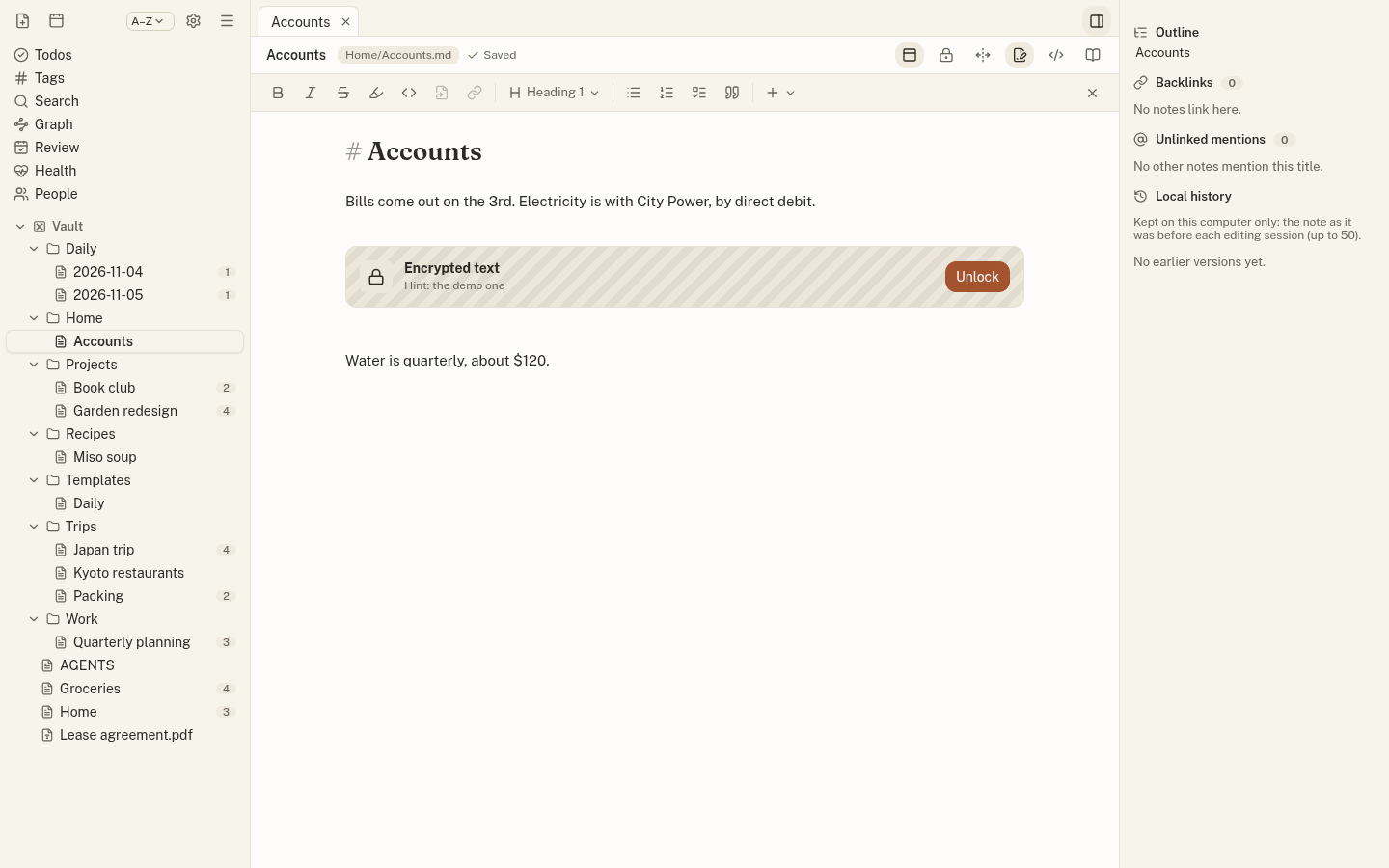
- Open the note in live preview or source (not the reading view).
- Select the text to protect.
- Right-click it and choose Encrypt selected text…, click the lock button in the note’s header, or press Ctrl+Shift+L (⌘⇧L).
- The first time, choose your secrets password (twice) and an optional hint. Click Encrypt.
The text becomes a locked block. One secrets password covers every encrypted block in the vault; it is separate from your sync password.
Reading and changing it
Click Unlock and enter the password. The text appears in a panel inside the note (never in the note’s file), where you can Copy it, change it and Save and lock, Lock it again, or Remove encryption to put it back as plain text. An unlocked block locks itself after five minutes without use.
Jotzen can remember the password until it closes, for ten minutes, or not at all (Settings → Editor); Forget the secrets password drops it at once.
Earlier copies
Before encrypting, Jotzen tells you what happens to earlier copies of the note: its local history is deleted, since it held the plain text. If the note is synced, its synced history keeps earlier versions for up to 30 days; only you and the people you share the note with can read them. In a linked folder, Git or other tools may keep earlier versions.
Encrypted text isn’t searchable, and exports always show it locked.
What it protects
It keeps the text unreadable to anyone who reads the note’s file, a backup or a synced copy without the password. It doesn’t protect against someone using your computer while the text is unlocked or the password is remembered, or against copies made before you encrypted it. It hasn’t had an outside security review yet. Locking a whole note is planned.