

Start
Getting started
What Jotzen is, choosing a vault, and finding your way around the window.
What Jotzen is
Jotzen is a notes and todo app for Markdown files that stay on your computer, in a folder you choose (your vault), plus any other folders you link, such as a project’s Git repository. Nothing is moved into a proprietary database: your notes stay ordinary files that any editor can open.
Todos written in any note (- [ ] something) come together in one list, calendar, board and timeline. Links, tags, backlinks, search and a graph work across all your folders. Sync between devices is optional and end-to-end encrypted: the service stores only text it cannot read.
Choose a vault
- Open Jotzen. The first time, it asks for a vault folder.
- Choose an empty folder to start fresh, or an existing folder of Markdown notes. An Obsidian vault works as it is: Jotzen reads its links, tags, callouts and other conventions.
- Jotzen adds a small hidden
.jotzenfolder for its own data (local history and trash) and anAGENTS.mdthat explains the vault’s layout to AI tools.
To work with other folders too, link them: Settings → Folders → Link a folder…. See Linked folders and projects.
Around the window
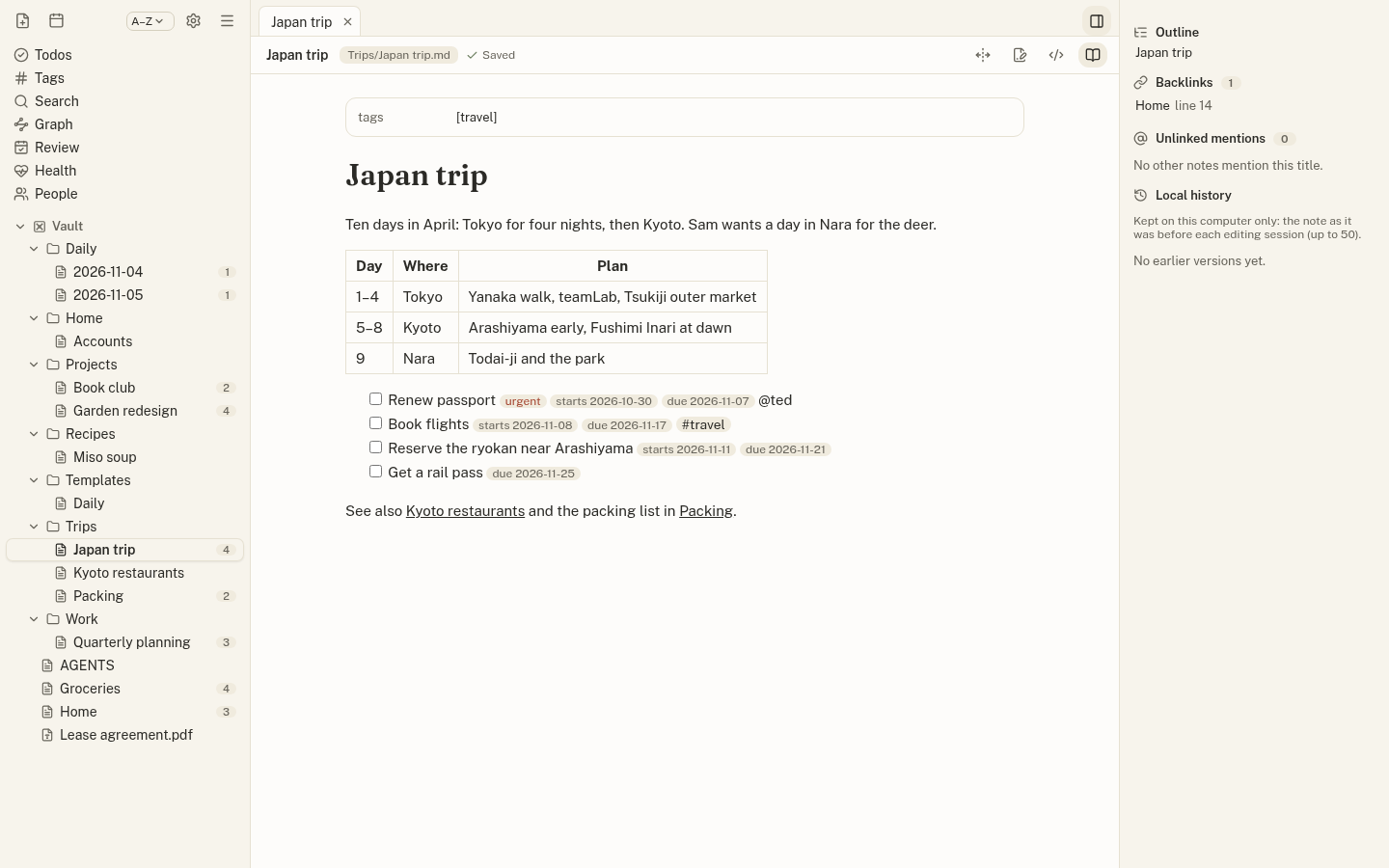
- Sidebar (left): views (Todos, Tags, Search, Graph, Review, Health), saved searches, bookmarks, and each folder’s tree. Click a folder’s name to list its notes; the arrow opens and closes it.
- Tabs (middle): each note opens in a tab. Open a note to the side for a split view.
- Right panel: the note’s outline, backlinks, unlinked mentions and history. Toggle it with Ctrl+\ (⌘\ on a Mac).
- Note header: the note’s path, sharing, full width (↔), and the three modes: live preview, source and reading.
Write your first note
- Press Ctrl+N (⌘N) for a new note, or click the page icon at the top of the sidebar.
- Type a title as the first heading (
# Weekend plans) and write below it. Edits save automatically. - Link to another note with
[[and pick it from the suggestions. Add a tag with#. - Add a todo:
- [ ] Buy the train tickets !high due:fri. It appears in Todos at once.