

Write and organize
Writing notes
The editor’s three modes, Markdown, tables, math, diagrams, images and templates.
Live preview, source and reading
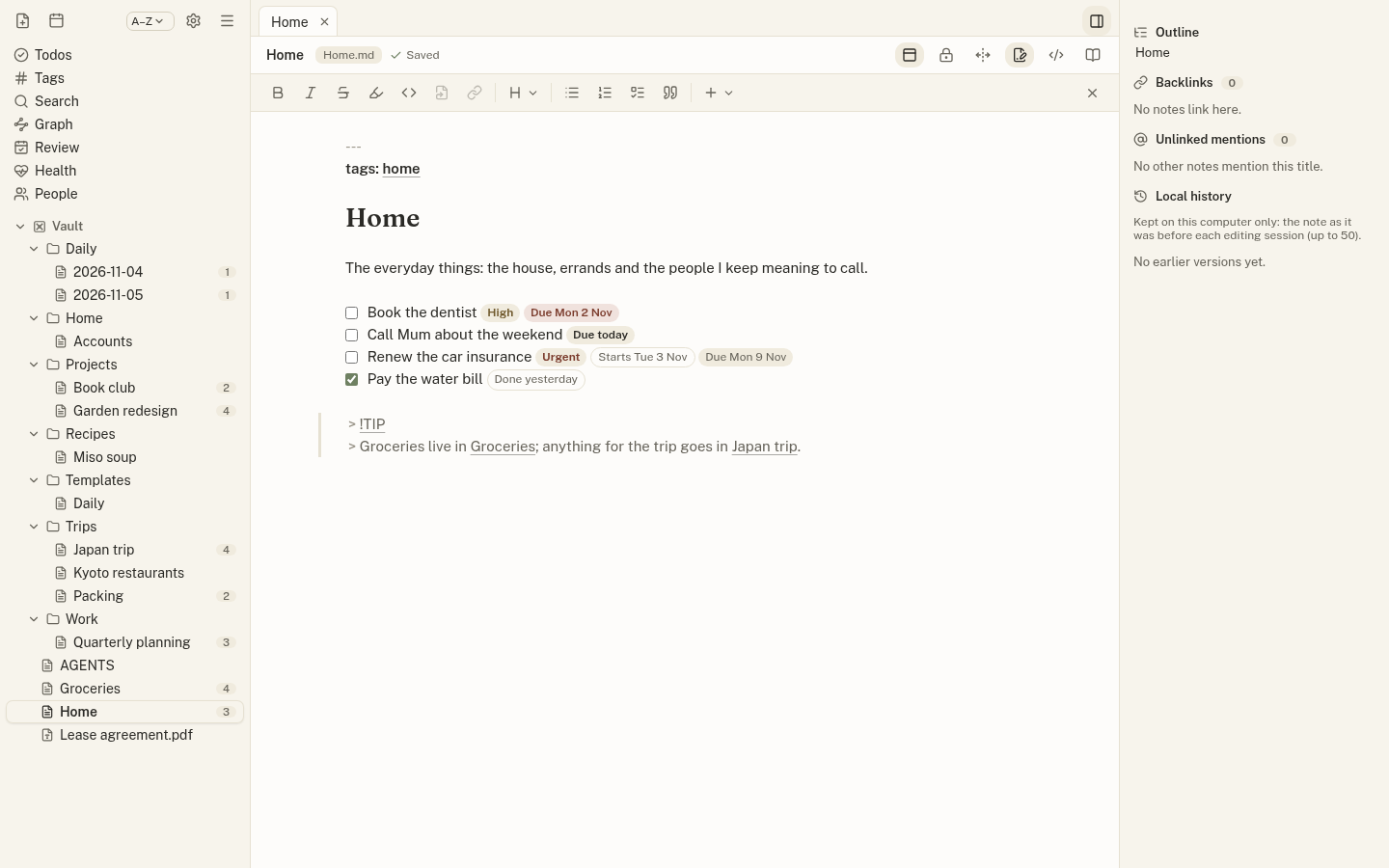
- Live preview (the pencil icon) hides Markdown marks on lines you are not editing, makes checkboxes clickable and draws tables, math and diagrams.
- Source (
</>) shows the plain Markdown. - Reading (the open book) shows the finished note; links, tags and todos are clickable.
Switch with Ctrl+E (⌘E) between live preview and reading, and Ctrl+Shift+E for source. Edits save automatically a moment after you stop typing.
Markdown and Obsidian conventions
Jotzen writes standard Markdown and reads the conventions Obsidian uses, so notes move freely between the two:
- Wikilinks
[[Note]],[[Note|label]],[[Note#Heading]]and[[Note#^block]]; frontmatteraliases. - Embeds:
![[Note]],![[Note#Heading]], and images with sizes (![[photo.png|300]]). - Callouts such as
> [!tip], foldable with-(closed) or+(open). - Footnotes (
[^1]), hidden%%comments%%and^block-ids.
Typing [[ suggests notes and # suggests tags. Ctrl+click (⌘-click) follows a link in the editor.
Tables, math and diagrams
Tables show as a grid in live preview; click one to edit it. In a table, Tab and Shift+Tab move between cells and Enter moves down a row (adding one past the end); the table re-aligns as you go. The command palette inserts a table and adds or deletes rows and columns.
Math ($…$, $$…$$ or a `math block) and Mermaid diagrams ( `mermaid ) are drawn on your computer; nothing is fetched from the internet.
Images and attachments
Paste or drop an image into a note and Jotzen saves it as an attachment (in the attachments folder set in Settings) and embeds it. Images from the web are never loaded automatically.
Text inside the PNG and JPEG images you embed is readable by search; see Search.
Width, tabs and split view
- Full width: notes are a readable 760-pixel column by default. The ↔ button in a note’s header (or Settings → Editor) widens every note to the whole pane.
- Split view: right-click a note in the sidebar and choose Open to the side. Move a tab across with the command palette; closing a pane’s last tab ends the split.
- Window: Jotzen reopens at the size and place it had when you closed it.
Templates
Notes in the templates folder appear in the command palette as New note from template. Templates can use {{date}}, {{time}} and {{title}}, and ask for values with {{field:Client}} or {{field:Client|Acme}} (with a default), filled in a short form when the note is created.
A template’s frontmatter can choose where new notes go and what they are called, for example template-folder: Meetings and template-name: "{{date}} {{field:Client}}".
Vi keys
Turn on vi keys in Settings → Editor for normal, insert and visual modes; :w saves, and yank and put use the system clipboard.