

Todos and planning
Todos
Writing todos in any note, and working with them in the list, calendar, board and timeline.
Writing a todo
A todo is a Markdown checklist item in any note. Markers after the text add details:
- [ ] Send the invoice !high start:2026-11-01 due:2026-11-05 @alex #finance every:month| Marker | Meaning |
|---|---|
!urgent !high !medium !low | Priority (no marker means normal) |
due:2026-11-05, due:2026-11-05T15:00 | Due date, optionally with a reminder time |
start:2026-11-01 | When work starts (shown as a bar in the timeline) |
@alex | Assigned to someone |
#finance | A tag |
every:day|weekday|week|month|year, every:2-weeks | Repeats |
[/] [x] [-] | In progress, done, cancelled |
You can write dates in words: due:tomorrow, due:fri, due:next-week, due:+3d or due:friT15:00. They are saved as real dates when you add or edit the todo or move off the line, so notes always hold plain dates. Obsidian Tasks emoji (⏫, 📅 2026-11-05, 🛫, 🔁 every week) are read too.
Todos indented under another are its subtasks; other text indented under a todo is its notes.
The todo list
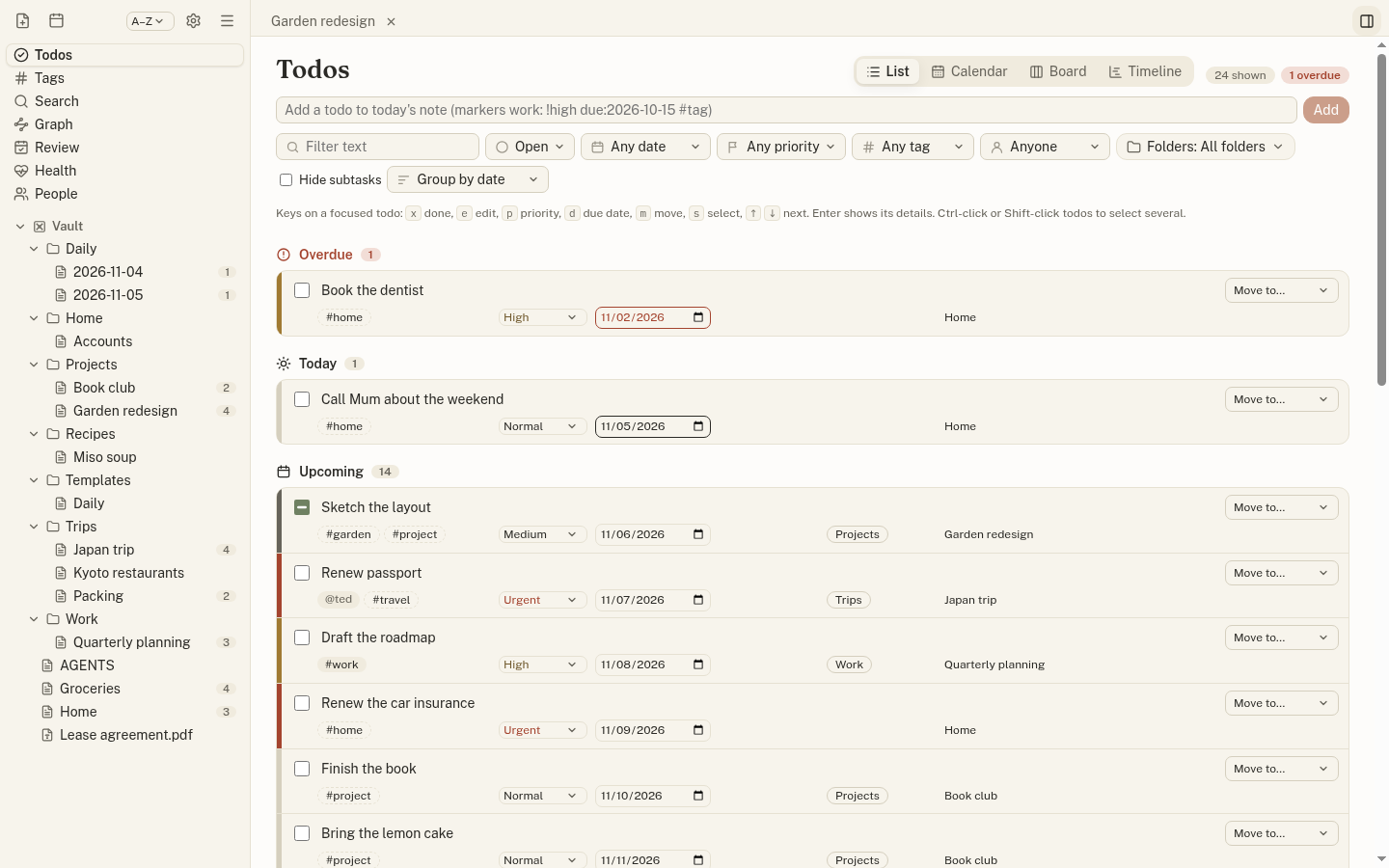
Todos in the sidebar (Ctrl+Shift+T) gathers every todo from the vault and linked folders. Filter by status, date, priority, tag (including tags inherited from the note), person and folder or project; group by date, priority, project or note.
- Add a todo from the box at the top: it goes to today’s daily note, markers included.
- Check a todo, or change its priority or date, and only that line of the note changes.
- Click a todo’s text for its details: text, status, priority, dates, repeat, people, tags, notes and subtasks, all editable.
- Select several (Ctrl/⌘-click, Shift-click, or
s) to mark them done, set a priority or date, or move them together.
Keys, with a todo focused: x completes it, e edits, p priority, d due date, m Move to…, ↑/↓ the next or previous todo, Enter its details.
Calendar and board
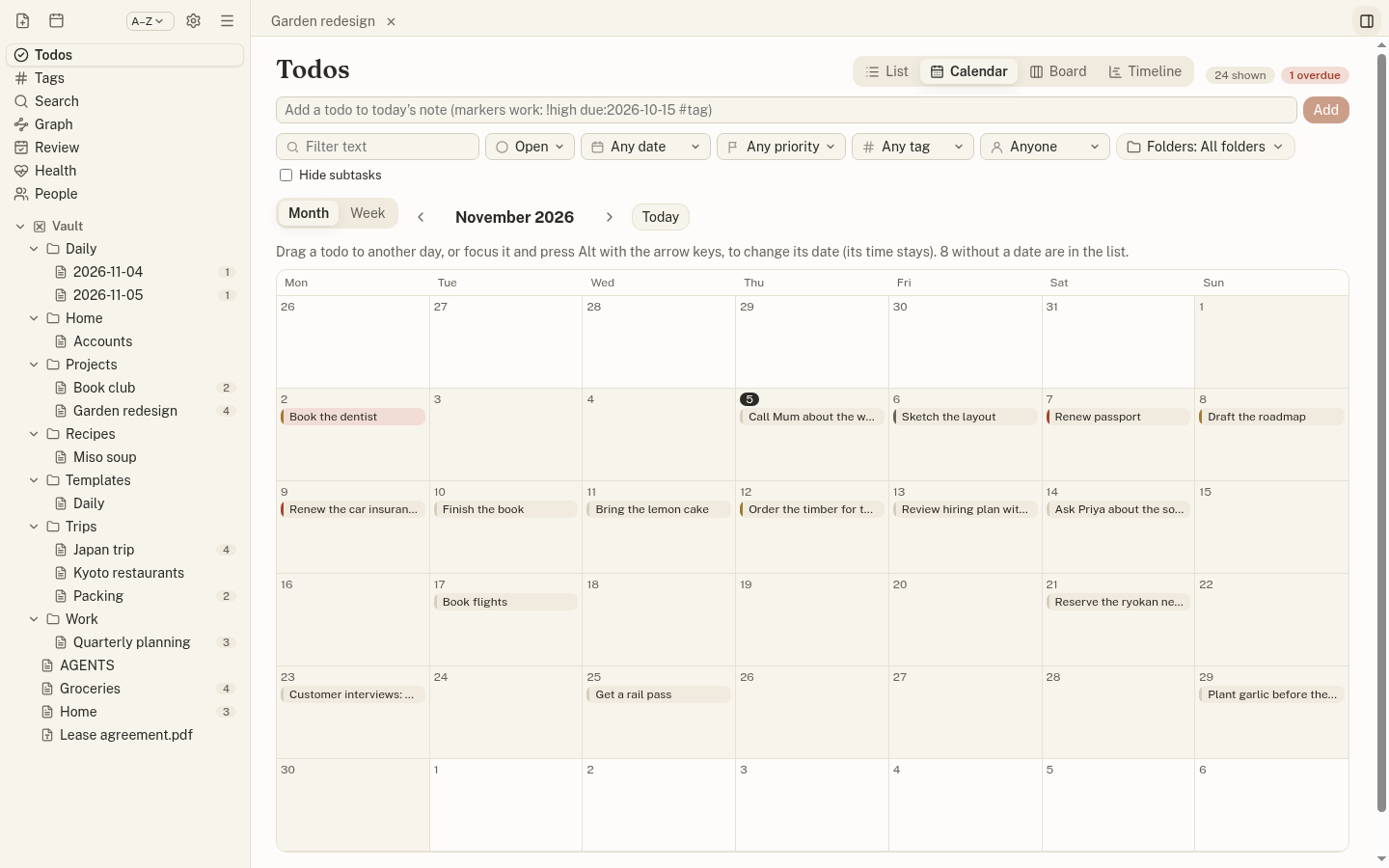
The Calendar shows due todos by month or week; drag one to another day to change its date (its time stays). The Board has a column per status (drag a card to mark it in progress, done or cancelled) or per project.
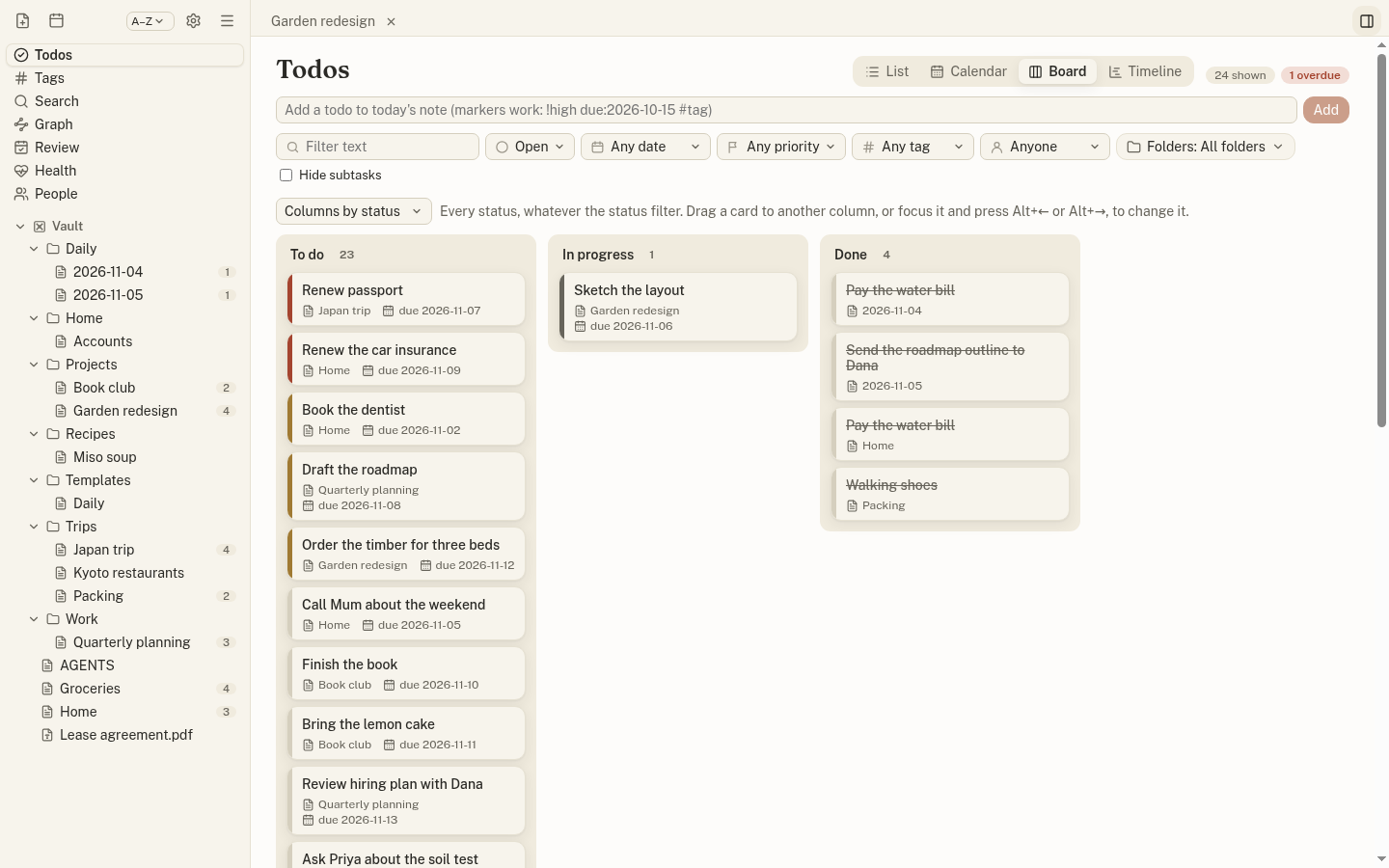
From the keyboard, focus a todo and press Alt+← or Alt+→ to move it a day (or a column), or Alt+↑/↓ to move it a week.
Timeline
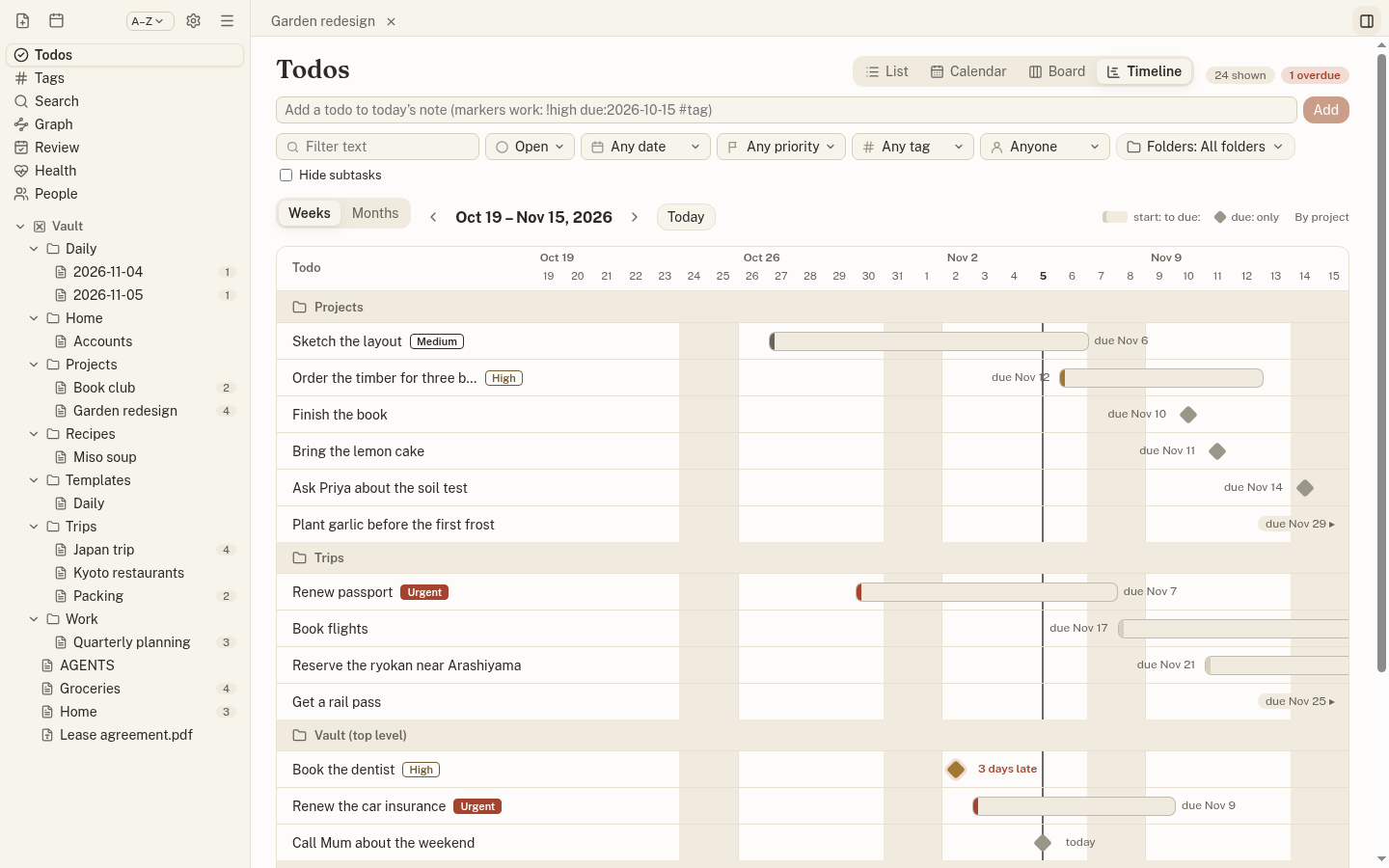
The Timeline shows dated todos by project over four weeks or three months: a bar from the start date to the due date, or a diamond on the due date when there is no start. Late todos are marked with how many days late they are; done ones fade.
- Drag a bar to move both dates, or one of its ends to change just that one.
- With a todo focused, Alt+←/→ moves it a day and Alt+Shift+←/→ changes its due date.
- Click a todo to edit its dates and see its line.
Repeating and moving todos
Completing a repeating todo adds the next one above it, on the next date in its schedule after today, with the same text, time and priority; the completed line stays as a record. Skip this one in its details skips an occurrence without completing it.
A todo’s Move to… menu sends it (with its subtasks) to today’s or tomorrow’s daily note or another note. In the editor, the palette’s Move todo to today’s note moves the todo under the cursor.
Reminders
Jotzen shows a daily summary of todos due today and overdue (at 9:00 by default; Settings → Reminders), and a reminder at the time of any todo that has one (due:2026-11-05T15:00). A timed reminder can be snoozed to Tomorrow or Next week, or marked Done.
Weekly review
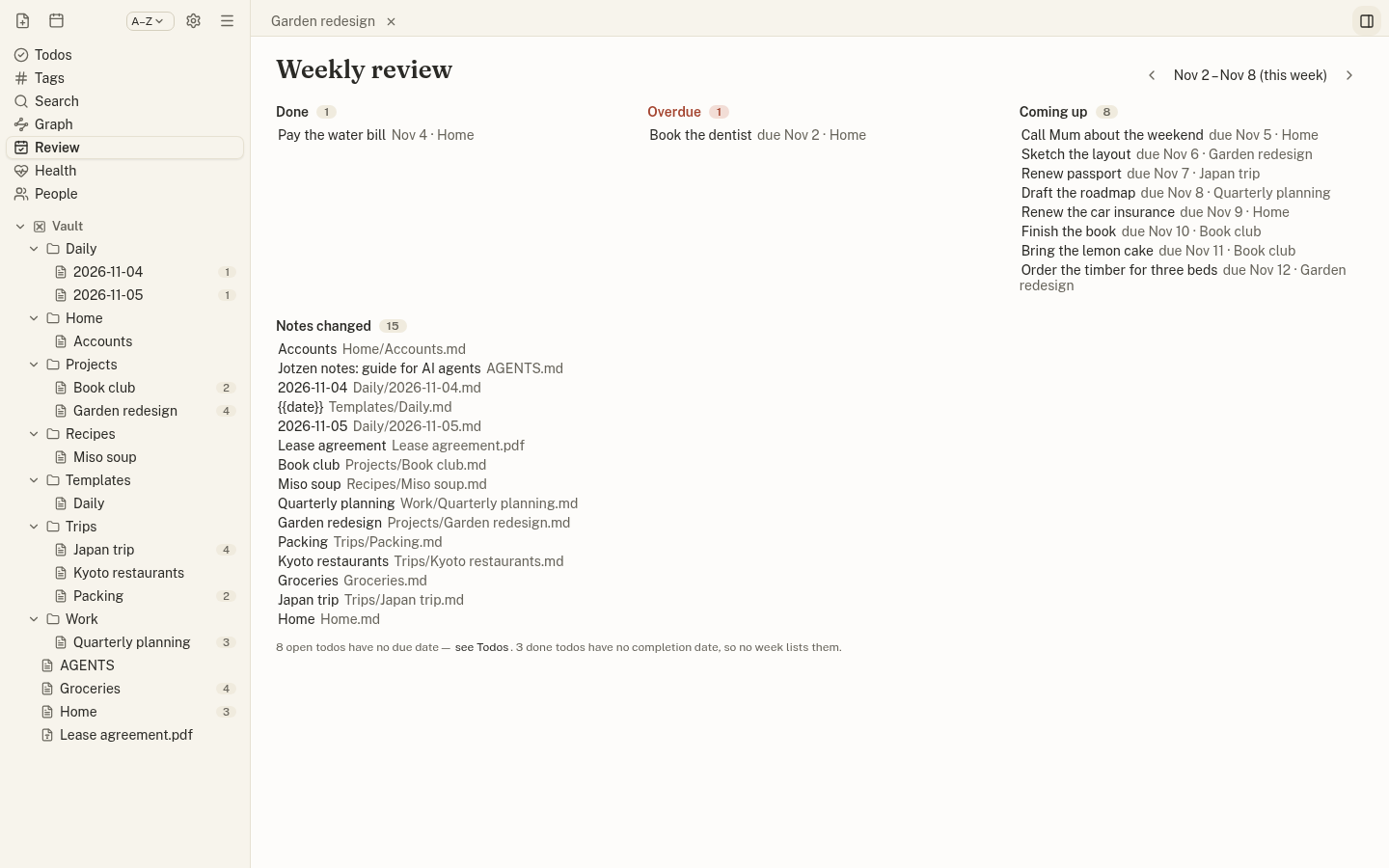
Review in the sidebar shows, for any week, what you checked off, what is overdue, what is coming up in the next seven days, and which notes changed. Checking off a todo records the day (done:2026-11-05), which is how the review knows; turn that off in Settings → Todos.