

Write and organize
Organizing notes
Folders and the note list, links and backlinks, tags, the graph, daily notes and the outline.
Folders and the note list
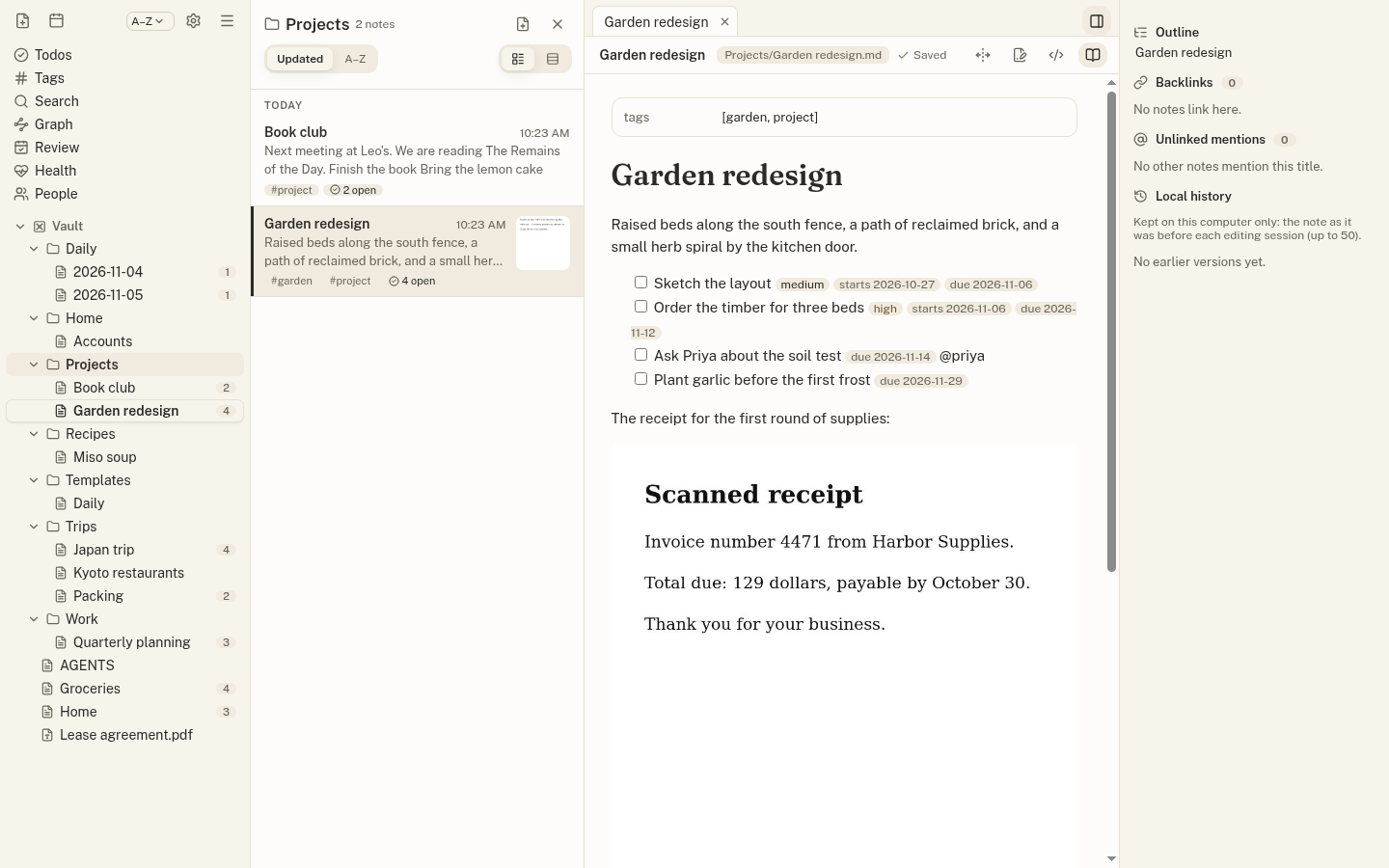
Click a folder’s name in the sidebar (or Vault) to list its notes, including those in subfolders, in a column beside it. Each card shows the note’s title, when it was edited, the start of its text, its tags, open todos and a thumbnail of its first image.
- Sort by Updated (grouped Today, Yesterday, Previous 7 days, Earlier) or A–Z.
- Switch to Compact to see titles only.
- Close the list by clicking the folder again, the ×, or pressing Esc.
Right-click a note or folder to rename or move it (links to it are updated after a preview), make a new note there, bookmark it or delete it. Deleted notes go to Jotzen’s trash in the vault.
Links, backlinks and mentions
Link notes with [[Note name]]. The right panel lists backlinks (notes that link here) and unlinked mentions (notes that mention this note’s title without linking to it).
Links work across folders: a link that isn’t found in its own folder is looked up in the others, the vault first. Prefix a folder’s name to choose one, such as [[vault:Plans]] from a repository. Renaming a note updates links to it everywhere.
The graph
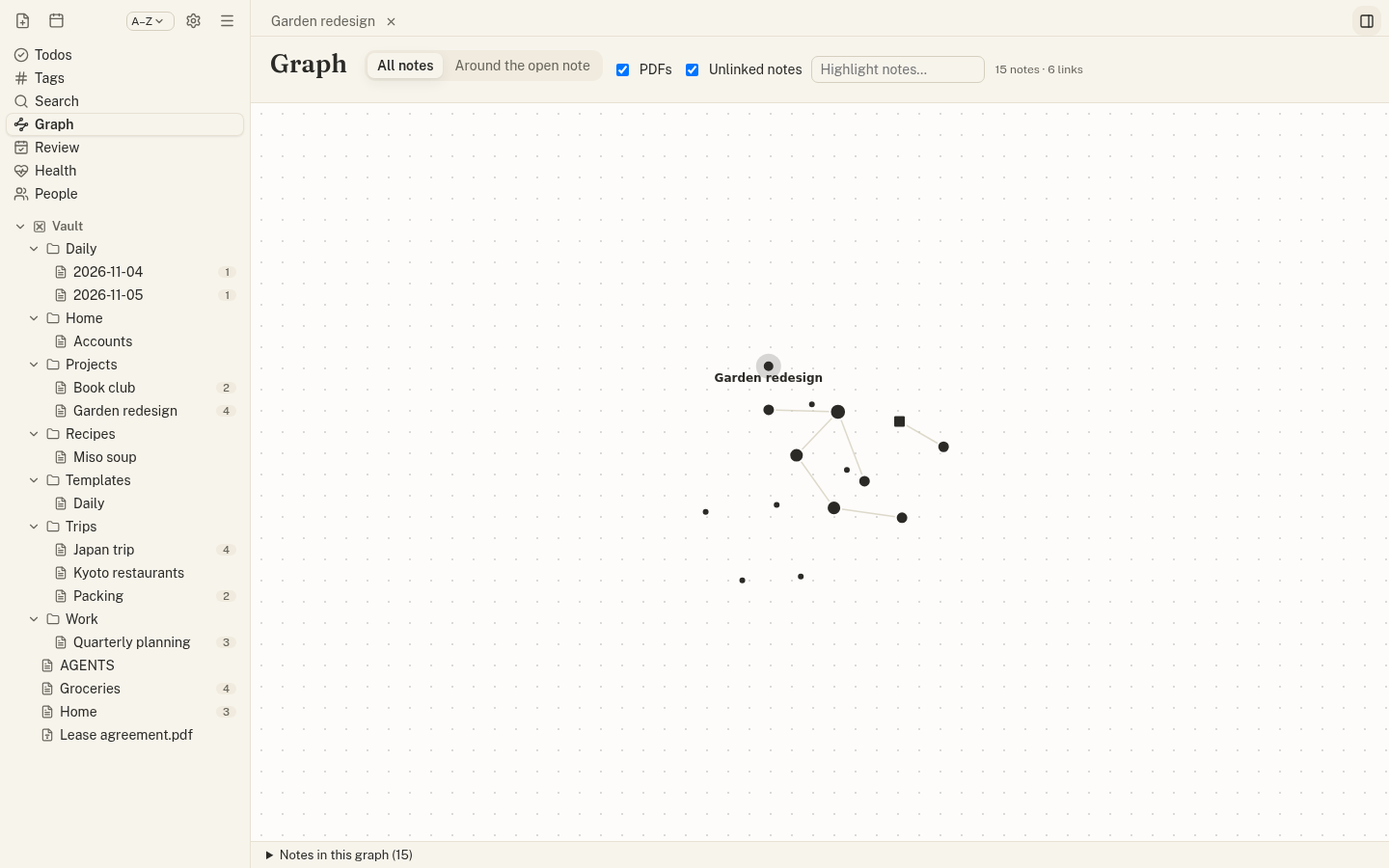
The Graph view shows notes and PDFs as dots and links as lines, across all folders. Show everything or only what is around the open note (one or two links away), hide PDFs or unlinked notes, and highlight notes by name. Drag to pan, scroll to zoom, click a dot to open the note.
Daily notes
Press Ctrl+Shift+D (⌘⇧D) or click the calendar icon for today’s note, created from the Daily template. Its header has ‹ and › for the previous and next days with notes, and a month calendar with a dot on each day that has one.
When you first open today’s note, Jotzen offers to carry over the open todos from the last daily note, with their subtasks. Not now leaves them where they are.
Embeds and query blocks
![[Note]] shows another note inside this one, and ![[Note#Heading]] just that section.
A `jotzen code block holding a query shows live results inside the note:
```jotzen
todos tag:work due:week
```
Filters: tag:, in: (the vault or a linked folder), folder:, due:overdue|today|week|none, status:open|done|all, priority:, @name, limit: and plain words. Use notes instead of todos to list notes. Todo results can be checked off right there.